How to Create DM Automation for Instagram Ads
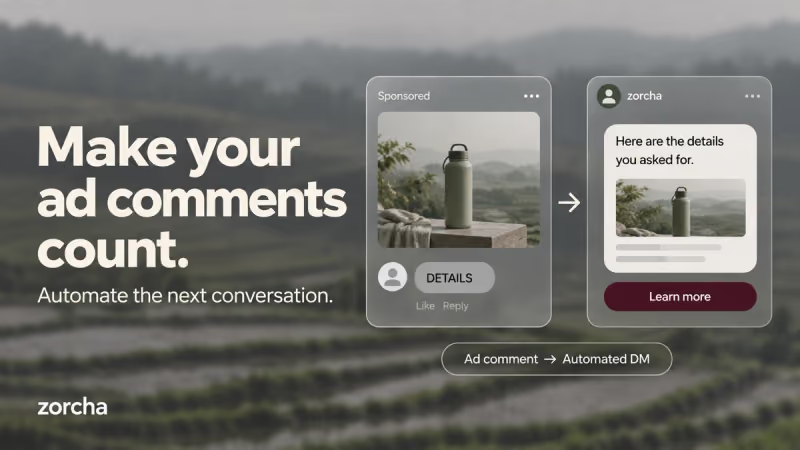
Instagram ads can drive a huge volume of traffic to your business, but generating clicks is only half the battle. The real challenge is converting interested viewers into qualified leads and customers.
That's where Instagram DM automation for ads comes in.
Instead of sending ad traffic to a landing page and hoping visitors fill out a form, you can start a conversation directly inside Instagram DMs. When someone comments on your ad, they instantly receive the information, resource, offer, or next step you're promoting. This creates a smoother user experience and often results in higher conversion rates.
With Zorcha, setting up Instagram Ads DM automation takes just a few minutes. You can automate responses, qualify leads, collect emails, encourage follows, and send follow-ups, all without manually managing conversations.
In this guide, we'll walk through the complete process.
TL;DR
- Instagram Ads DM automation lets you instantly engage prospects via DMs when they comment on your Meta ads, rather than redirecting them to external landing pages.
- To use this feature, you must sign up and connect your account through Meta Business authentication, not through Instagram.
- Zorcha lets you select your Meta ad account and then choose the exact ad you want to automate, giving you precise control over which campaigns trigger which workflows.
- When configuring your message, you can add multiple DM blocks, text, PDF, image, video, and cards, delivered as separate DMs in the user's inbox, one after another.
- You can create up to 3 DM variations to A/B test different message sequences and find out which version converts best.
What is Instagram Ads DM Automation?
Instagram Ads DM automation allows businesses to automatically send direct messages to people who comment on a Meta ad.
Instead of directing users to an external page, the ad encourages them to start a conversation by commenting. Once they do, automation takes over and delivers the appropriate response instantly.
This approach helps businesses:
- Capture leads directly inside Instagram
- Deliver lead magnets and resources automatically
- Qualify prospects through conversations
- Collect email addresses
- Grow profile followers from ad traffic
- Reduce response times to zero
Scale customer interactions without additional team members.
Why Use DM Automation for Instagram Ads?
Traditional lead generation often introduces unnecessary friction.
A user sees your ad, clicks a link, lands on a page, fills out a form, waits for an email, and then finally receives what they wanted. Every additional step creates an opportunity for drop-off.
DM automation removes most of that friction by keeping the entire experience inside Instagram. Users get immediate responses, businesses collect better-quality leads, and conversations start while interest is at its highest.
The result is higher conversion rates, lower cost per lead, and a more natural experience for the people you're trying to reach.
Also read: 11 best link-in-bio tools (free & paid)
Before You Begin
Before creating your automation, make sure:
- Your Instagram account is connected to Zorcha
- The ad creative (post or reel) is already available on Instagram
- Your automation message is prepared
- Any resources, links, or lead magnets are ready to be shared
Once everything is prepared, you're ready to build your workflow.
.png)
Step 1: Sign Up and Authenticate With Meta Business
This is the most important step, and it happens before you even enter the Zorcha dashboard.
When signing up for Zorcha, you will see two authentication options:
- Authenticate with Meta Business
- Authenticate with Instagram
To run automations on Meta Ads, you must select Authenticate with Meta Business and complete the authorization process.
Accounts connected through Instagram authentication cannot access Meta Ads automations at all. This is a platform-level requirement and cannot be changed after onboarding, so make sure you select the correct option from the very start.
Once authenticated through Meta Business, you will land on your Zorcha dashboard and can begin setting up your automation.
Step 2: Create a New Automation
Inside your Zorcha dashboard:
- Navigate to Automations from the left-hand sidebar
- Click New Automation
- Select DM from Ads
This opens the automation setup screen specifically designed for Meta Ads campaigns.
Give your automation a clear, descriptive name so you can identify it later when reviewing performance metrics and run history.
For example:
- Free Ebook Ad - Q2 Campaign
- Webinar Registration Ad - August
- Product Demo Lead Gen Ad
Step 3: Select Your Meta Ad Account
The first setup step inside the automation is selecting your Meta ad account.
From the dropdown menu, choose the ad account that is running your campaign. Once selected, Zorcha will automatically pull and display all ads associated with that account.
If you manage multiple ad accounts, make sure you pick the correct one. Only ads linked to the selected account will appear in the next step.
Step 4: Choose the Specific Ad You Want to Automate
After selecting your ad account, Zorcha displays all ads currently running under it.
Choose the specific ad you want the automation to monitor.
This gives you precise control over which campaigns trigger which workflows. For example:
- A lead magnet ad can trigger one workflow, delivering a free guide
- A webinar ad can trigger another with a registration link
- A product demo ad can trigger a completely different conversation
By linking each automation to a specific ad, you ensure every user receives a message relevant to the exact ad they commented on.
You will need to create a separate automation for each ad you want to monitor.
Step 5: Configure Your Trigger Keywords
Next, add the keywords that will trigger the automation when someone comments on your ad.
Whenever a user comments using one of your configured keywords, Zorcha sends the automated DM instantly.
Keywords are not case-sensitive, so users can type them in any format and the automation will still fire.
You can add multiple keywords to capture different ways users might respond. Examples include:
- GUIDE
- LINK
- INFO
- DEMO
- PRICE
- YES
- SEND IT
The goal is to make it as easy as possible for users to trigger the workflow without confusion.
Also read: The link in bio strategy that actually converts (no more dead clicks)
Step 6: Build Your DM Message With Multiple Blocks
This is where Zorcha's multi-message DM feature makes a real difference.
Instead of cramming everything into a single message, you can now build a full DM sequence using different content blocks.
The DM blocks currently available are:
- Text - A plain message block for any part of the conversation that needs to feel like a real person typed it.
- Audio - A voice note delivered directly inside the DM, playable without leaving Instagram, best for coaches and personal brands building trust through personality.
- File / Guide - A PDF attached natively inside the DM as a file card, no links, no redirects, no leaving the app, a feature exclusive to Zorcha among Instagram DM automation tools.
- Media - A single image or video delivered as a standalone visual block when the content is self-explanatory and needs no text or button alongside it.
- Card with Image - An image, short text, and a button combined into one formatted card, built for moments where one thing is being offered, and one action should follow.
- Card Carousel - A horizontally swipeable set of cards inside a single DM, each with its own image, text, and button, the only format that presents multiple options without sending multiple messages.
You can chain as many of these blocks as you need. For example:
Block 1 (Text) - "Hey! Thanks for commenting. Here's everything I promised."
Block 2 (Files) - PDF of your free guide delivered natively in the chat
Block 3 (Media) - an image showcasing your product or offer
Block 4 (Card with Images) - a CTA card linking to your booking or sales page
The subscriber receives all of these as individual DMs in their inbox in the exact order you set them.
Note: Multi-message DM sequences are available on the Ultimate plan. Free and non-Ultimate users can still send a single message with text, image, and a link.
Step 7: Set Up DM Variations to A/B Test Your Messages
DM Variations are different from adding multiple messages. This is important to understand.
Multiple messages mean chaining several blocks together in one sequence that goes to every user.
DM Variations means creating up to 3 different versions of that sequence to test which one performs best.
For example, you might create:
- Variation 1 - a specific PDF, a short text, and a card with CTA copy version A
- Variation 2 - a different PDF, a longer text, and a card with CTA copy version B
- Variation 3 - no PDF, just a text message and a different image
Zorcha rotates between these variations per send. Some users get Variation 1, others get Variation 2, and so on. Over time, you can see which version is driving more clicks, replies, or conversions and double down on what works.
This feature applies to every block in your sequence, so you have full flexibility to test different content types, copy, and offers.
Step 8: Enable Follow Before DM (Optional)
If growing your Instagram audience while generating leads is a priority, enable "Ask for Follow Before DM."
When turned on:
- Users are asked to follow your profile before receiving the resource
- They click the Visit Profile button to go to your Instagram page
- After following, they click I'm Following to confirm
- The automation then delivers the full DM sequence
This turns ad traffic into both leads and followers simultaneously. You can fully customize the follow request message and button labels to match your brand voice.
Step 9: Collect Email Addresses (Optional)
If you want to build your email list alongside your Instagram audience, enable Collect Email.
The automation will ask users to submit their email address before delivering the final resource. Once collected, emails are stored in your Zorcha Contacts section and can be exported for ongoing email marketing campaigns.
This is especially useful for coaches, consultants, SaaS companies, course creators, and e-commerce brands who want to continue nurturing leads beyond Instagram.
Step 10: Set Up Follow-Up Messages (Optional)
Many users open a DM but never click the link. Others get distracted and forget to return.
Zorcha's Follow-Up to Re-Engage feature automatically sends reminder messages within the first 24 hours to users who have not clicked or responded to the initial DM.
This helps recover missed opportunities without increasing your ad spend and often significantly improves campaign performance without any additional effort.
Step 11: Go Live
After reviewing your entire setup, click Go Live.
From this point, Zorcha automatically monitors comments on your selected Meta ad and sends DMs based on the trigger keywords and message sequence you have configured.
You can track performance from the Automations dashboard, including total runs, message delivery, and engagement data.
If you need to edit the message, swap a PDF, adjust keywords, or update your DM variations at any point, you can update the automation and reactivate it without starting from scratch.
From this point onward, Zorcha automatically handles incoming conversations and delivers responses based on the workflow you've configured.
Best Practices for Instagram Ads DM Automation
To maximize results, keep these principles in mind:
- Authenticate correctly from the start. If you sign up through Instagram authentication, you will not be able to access DM from Ads. This cannot be fixed after onboarding without reconnecting.
- Create one automation per ad. Zorcha links each automation to a specific ad. This keeps messaging relevant and performance data clean.
- Use multi-message sequences strategically. Do not just add blocks for the sake of it. Each message should serve a clear purpose, a greeting, a resource, or a CTA.
- Take advantage of native PDF delivery. If you have been sharing lead magnets via Google Drive links, move them to the Files block. It removes friction and keeps users inside Instagram.
- Run DM variations to learn what converts. Set up 2 to 3 variations with different copy, PDFs, or CTAs and let the data tell you which performs best before scaling.
- Use follow-ups to recover lost leads. A single well-timed reminder within 24 hours can recover a significant portion of users who did not take action on the first message.
Also read: Why intent based AI automation performs better than keyword based bots
Conclusion
Instagram Ads DM automation bridges the gap between ad engagement and meaningful conversations. Instead of sending prospects through external funnels, you can meet them inside Instagram and provide instant, relevant responses that move them closer to becoming customers.
With Zorcha, the setup is straightforward. Sign up through Meta Business, create a DM from Ads automation, select your ad account, choose your specific ad, configure your keywords and message sequence, and go live. From there, Zorcha handles every conversation automatically.
If you are investing in Instagram advertising and want to generate more leads without increasing your workload, start building your Instagram Ads DM automation in Zorcha today.
FAQs
1. Do I need a special account type to run Meta Ads automation in Zorcha?
Yes. You must authenticate through Meta Business when signing up for Zorcha. Accounts connected through Instagram authentication cannot access DM from Ads automation.
2. Can I select a specific ad for each automation in Zorcha?
Yes. Zorcha lets you choose your Meta ad account first, then select the specific ad you want to monitor. Only ads linked to the selected account will appear in the list.
3. What types of DM blocks can I add to my message sequence?
You can add Text, Files (PDF), Media (image or video), and Card with Images blocks. Audio and Card Carousel blocks are coming soon. Each block is delivered as a separate DM in the user's inbox.
4. What is the difference between multiple messages and DM variations?
Multiple messages mean chaining different content blocks into one sequence sent to every user. DM variations are up to 3 different versions of that sequence used for A/B testing to find which copy or content converts best.
5. Can I send a PDF directly through Instagram DM?
Yes. The Files block lets you upload a PDF to Zorcha's PDF Library and deliver it natively inside the Instagram DM. The user taps it once and reads it inline with no Google Drive redirect or login required.
6. Is multi-message DM available on all Zorcha plans?
Multi-message DM sequences are an Ultimate plan feature. Free and non-Ultimate users can still send a single message with text, image, and a link.