What Is Zorcha's Custom Flow Builder? A Complete Overview of Every Feature Inside It
Quick automations solve the basic problem. Someone comments, someone DMs, the reply goes out instantly, nothing gets missed. But every person who triggers that automation gets the same message, whether they're a first-time visitor or someone who's already part of your community.
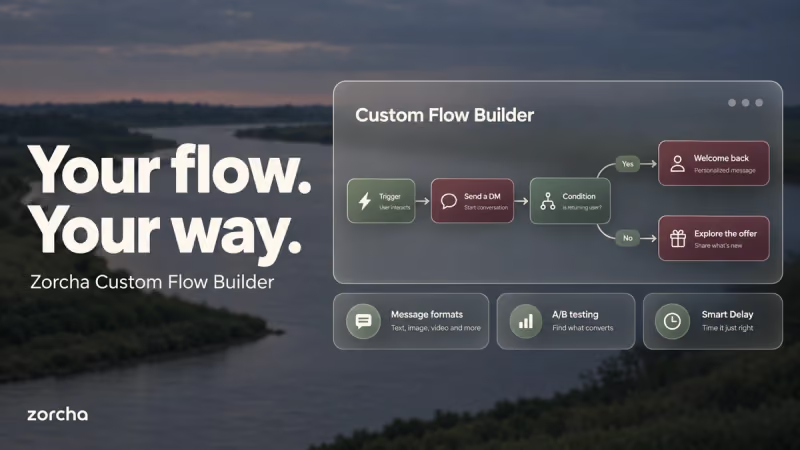
The Custom Flow Builder is where you go beyond that. It's a visual, drag-and-drop canvas inside Zorcha where you add conditions, branching paths, and A/B tests on top of your automations, so the same trigger can lead to a completely different DM depending on who the person is, and you can test which version actually converts better.
This guide covers every feature inside the Custom Flow Builder: what each part does and how it works.
TL;DR
- Zorcha's Custom Flow Builder is a visual canvas for building multi-step Instagram DM automations, no code required.
- Every flow starts with a trigger, and Zorcha offers eight trigger types across Instagram, forms, and audience activity.
- Send a DM supports six message formats, including direct PDF delivery, something most Instagram automation tools can't do.
- Condition, Randomize, and Smart Delay let you branch, test, and time messages so the flow feels personal rather than generic.
- Start from a blank canvas or a ready-made flow template, then validate and go live in minutes.
What Is the Custom Flow Builder?
The Custom Flow Builder is where you design multi-step Instagram DM automations inside Zorcha, on a visual canvas.
Instead of a single auto-reply, you build an entire sequence, a trigger fires, a DM goes out, logic checks who the person is, and sends them down a different path, and follow-up messages go out on a timer. Once it's live, the whole sequence runs on its own.
Also read: What is link in bio and how to set it up (step by step)
Step-by-step guide to use Custom Flow Builder
Given below is the step-by-step guide to use Zorcha’s Custom Flow Builder:
Starting a Flow
You'll find the Flow Builder inside Zorcha's Automations section. Click New Automation, and at the bottom of the templates window is Flow Builder, Build Your Flow, Your Way, which opens the canvas.

From there, you choose between starting with a trigger or starting with a template.
- Starting with a trigger drops you onto a blank canvas, where you pick your own trigger and build every step yourself.
- Starting with a template gives you a complete flow that's already built, triggers, messages, and logic all connected around a specific outcome. One template might walk a new follower from a Story reply into a paid community; another might send a free guide and follow up with an offer a day later. You can use a template exactly as it is, or open it up and change anything inside it, the trigger, the messages, the conditions, the Smart Delay timing, or set up an A/B test where there wasn't one before.
.png)
If you want a flow to live quickly, start with a template. If you have something specific in mind, starting from a trigger gives you full control from the first step.
Triggers
A trigger is the event that starts your flow. Zorcha gives you eight trigger types across three categories.
.png)
1. Instagram Triggers
- Comments on Post or Reel fires when someone comments on a post or reel, you choose a specific post or any post, and set the trigger to any keyword or specific ones like “GUIDE.” A toggle lets you reply publicly to the comment as well, which adds visibility under the post itself.
- Sends you a DM when someone messages you a specific keyword, catching people who are already in your inbox and typing something intentional.
- Replies to a Story fire when someone replies to your Story, a specific one or any of them, with an optional keyword filter. Story replies tend to come from your most engaged followers, which makes this one of the highest-intent triggers available.
- Replies to an Ad fired from paid campaigns in two ways: when someone comments on the ad itself, or through a Click to DM ad, where tapping the ad takes someone straight into your inbox, and their first message starts the flow.
2. Forms Trigger
- Submit a Form fires when a contact fills out an Instagram form, useful when you need structured details like a name or email before the flow begins.
3. Audience Triggers
- Contact is Created fires the moment someone becomes a new contact in Zorcha, which works well for a welcome message or onboarding sequence.
- Tag is Added to Contact, and Tag is Removed from Contact fire based on changes in your audience. These power lifecycle flows, when someone buys, a tag gets added, and a follow-up sequence starts on its own.
You can also connect more than one trigger to the same flow using Add Trigger, so a comment and a DM keyword can both lead into the same automation.
Also read: How generative AI is powering smarter Instagram DM automation
Steps
Once a trigger fires, the steps decide what happens next. Clicking Add Step opens three categories: Instagram, Logic, and External.
.png)
1. Send a DM
Send a DM is where you build the message, and it supports six formats.
- Text is a plain message with an emoji picker, the default for conversational openers and follow-ups.
- Audio sends a voice note inside the DM, which works well for personal brands where hearing your voice builds trust faster than text alone.
- File attaches a PDF directly inside the DM. This is worth pausing on: Meta can scan a PDF for malware but can't scan a Drive link, so most automation tools are stuck sending links, while Zorcha can hand over the actual file. This makes Zorcha safer than any other tool out there. Whoever's on the other end gets the guide, template, or resource immediately, with nowhere else to click.
- Media attaches a single image or video, useful for product shots or event graphics.
- Card with Image combines an image, text, and a button in one formatted block, built around a single clear next step.
- Card Carousel is a swipeable set of those cards, each with its own image, text, and button, useful for showing a few products in one DM instead of one.
On top of any format, the Add Button attaches a clickable CTA to a message, and clicking it is tracked as part of the flow; it can tag the contact or send them down a specific path.
Add Message stacks several formats inside one Send a DM step, so a single automated message can open with text, follow with a PDF guide, and close with a button, all in one go.
2. Condition
Condition splits the flow into a Yes path and a No path based on a rule about the contact, their follower count, whether they've engaged with a specific post, or whether they already carry a certain tag, among others.
You can stack more than one rule on a single Condition step, and choose Match all, where every rule has to be true, or Match any, where one is enough. This is what lets the same trigger send two different people down two different conversations.
3. Randomize
Randomize splits contacts into weighted groups so you can test different versions of a message against each other, 25% might see one version and 75% another, with room to add more variations for A/B/C/D-style tests.
Each group continues down its own path with its own steps, so one group could get a voice note while another gets a text message, and you compare which performs better.
Once you have an answer, you can remove the Randomize step and keep the winner, or leave it running if you'd rather keep testing.
4. Smart Delay
Smart Delay pauses the flow for a set number of hours or minutes before the next step fires. Say someone DMs you for a budget tracker template, you send it instantly, then Smart Delay holds for two hours before a follow-up goes out asking if they've had a chance to look at it.
That gap is what makes the follow-up read like someone checking back in, rather than two messages landing one after another.
5. Send HTTP Request
Send HTTP Request sends data to an external system when the flow reaches that point, which is how a flow connects to a CRM, database, or other tool through a webhook.
Conclusion
Between eight trigger types, six DM formats, and logic steps like Condition, Randomize, and Smart Delay, the Custom Flow Builder can be as simple as one comment leading to one DM, or as layered as a multi-branch sequence with timed follow-ups and A/B tests running side by side. Templates make the starting point fast, and the canvas keeps the whole thing visible as it grows.
Zorcha is also an Official Meta Partner, so every flow runs through Instagram's official API rather than a workaround. Your account stays protected while the automation runs in the background.
Head to Automations inside Zorcha and build your first flow today. Start from a template to get moving in minutes, or start from a trigger and build the exact sequence your audience needs.
Also read: How to create DM automation for Instagram ads
FAQs
1. Is the Custom Flow Builder only for Instagram?
Yes. Every trigger and step inside it is built around Instagram, comments, DMs, Story replies, ads, forms, and audience tags.
2. What's the difference between a trigger and a step?
A trigger is the event that starts the flow, like a comment or a DM. A step is everything that happens after, sending a message, checking a condition, or adding a delay.
3. Are Condition, Randomize, and Smart Delay required in every flow?
No, they're optional. A flow can be as simple as one trigger leading to one DM, with logic steps added only when you need branching, testing, or timing.
4. Can I edit a flow after it's already live?
Yes. Small changes like message wording can be edited anytime. For bigger structural changes, it's safer to pause the flow first so contacts already mid-sequence aren't affected.
5. Can a flow send a PDF and a text message in the same conversation?
Yes, either together in one Send a DM step using Add Message, or as separate steps, like a text reply followed by a PDF a few hours later through Smart Delay.
6. Does using the Custom Flow Builder put my Instagram account at risk?
No. Zorcha is an Official Meta Partner, and flows run through Instagram's official API. Automations respond to actions a person has already taken, rather than sending unsolicited messages.