How to Use the Condition Step in Zorcha's Flow Builder: Branching Logic, Setup, and Real Examples
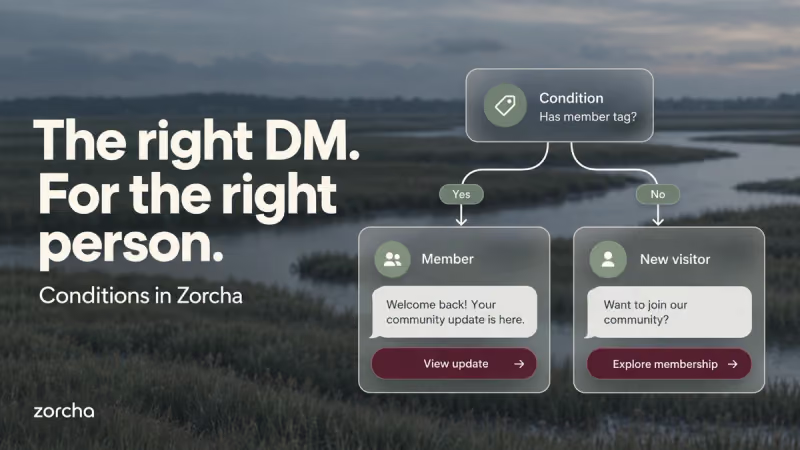
The worst thing you can do with a well-built automation is point it at the wrong person. Someone who already paid for your course doesn't need the sales pitch they triggered by commenting on your reel. Someone with 80,000 followers asking for your free guide is a completely different conversation from someone with 800.
A standard flow doesn't know the difference; it sends the same DM to everyone who enters it. The Condition step is how you change that. It checks something about the person mid-flow and sends them down one of two paths based on whether they meet the rule or not.
This guide covers how to set it up, what it can check, how to stack rules, and what the whole thing looks like when applied to real creator and business scenarios.
TL;DR
- The Condition step checks a rule about the person in your flow and routes them to a Yes path or a No path.
- Three things can be checked: their tags, their follower count, and whether they've submitted a specific form.
- Matches all require every rule to be true before someone goes to Yes. Matches any fires if at least one rule is met.
- Add Condition stacks multiple rules onto the same node, not a separate Condition step for each one.
- Conditions do nothing on their own. The Yes and No paths are what carry the actual next message.
Why One Message Costs You Conversions
A single-message flow works when the audience is homogeneous, everyone entering it is in the same situation, and needs the same next step. Most flows aren't like that.
A creator running a lead magnet flow will have people with 500 followers and people with 50,000 followers both comment on the same keyword. Sending them identical follow-ups wastes the high-follower contact, who might have been a brand collaboration if the right message had landed.
An e-commerce brand running a discount flow will have new visitors and repeat customers both enter through the same trigger. The repeat customer doesn't need to be convinced; they need a different reason to act, or a different offer entirely.
The Condition step solves this by turning one linear flow into a branching one, where the path someone takes depends on who they actually are.
Also read: 7 link in bio mistakes that are killing your conversions and how to fix them
Where the Condition Step Lives

A Condition step is always a mid-flow node; it sits between two other steps and is never the starting point of a flow.
On the canvas, it appears as a branching icon with two outgoing arrows: one labeled Yes, and one labeled No. Each arrow connects to its own Add Step button, so the two paths can lead to completely different next actions. To add one, click Add Step anywhere on the canvas, go to Logic, and select Condition. The configuration panel opens on the right.
The Condition step itself doesn't send anything. Its only job is to evaluate the rule and hand the contact off to whichever path fits.
Matches All vs Matches Any
The toggle at the top of the Condition panel controls how the rules work together when there's more than one.
- Matches all is AND logic; every rule on that node must be true for someone to reach the Yes path. One rule failing sends them to No.
- Matches any is OR logic, if even one rule is met, the person goes to Yes, regardless of the others.
.png)
The difference matters most when stacking conditions. Say you're checking two rules: Followers above 20K, and the contact hasn't submitted a consultation form. On Matches all, someone needs both a high follower count and no form submitted, before they go to Yes. In any match, meeting either one is enough. Choose the logic first, then set the rules, because the same two conditions behave very differently depending on which toggle is active.
Also read: How to create DM automation for Instagram ads
The Three Condition Types
-1.png)
After setting the logic toggle, you build the rule by choosing a category, an operator, and a value. Zorcha's Condition step supports three categories.
Tags
Tags checks whether a contact's profile carries a specific label, or doesn't. You set it as Tags contains [tag name] or Tags does not contain [tag name].
Tags in Zorcha are assigned in a few ways: manually inside the Audience section, automatically when a contact completes a step in a flow (for example, tagging everyone who clicks a button as "clicked_guide"), or through lifecycle actions you've set up elsewhere. The tag has to exist on the contact before the Condition runs, so the tag logic is only as reliable as the system feeding tags in.
A common use: a flow that delivers a free resource, then checks Tags to contain a member before sending a follow-up. If they're already in the paid community, they get a welcome-back note, not a pitch for something they've already bought.
Followers
Followers checks whether a contact's Instagram follower count sits above or below a number you set.
This is useful when the next right step depends on the scale of someone's audience rather than their intent. A creator with 80,000 followers commenting on your reel is a potential collaboration partner. A creator with 1,200 followers commenting on the same word is more likely a fan or a future student. One message won't serve both, and a follower's condition is what makes the split automatic.
A threshold of 20,000 is a common starting point for separating creator-scale accounts from general audience members, but the right number depends on what the Yes path is offering.
Engagement
Engagement checks whether a contact has or hasn't submitted a specific form at any time. The setup looks like: Didn't submit a form at any time for Schedule a Consult.
This condition exists to avoid re-pitching people who've already raised their hand. Once someone has filled in a consultation form, retargeting them with the same call-to-action wastes the touch and can come across as the automation not knowing who it's talking to.
Checking for a prior form submission before sending a booking prompt filters those people out before they receive a message that doesn't apply to them.
Stacking Multiple Conditions
A single Condition node can carry more than one rule. Click Add Condition at the bottom of the panel, and a second rule builder appears directly beneath the first, with the same category, operator, and value format.
The stacked rules all sit on the same node, which means the Matches all / Matches any toggle applies to every rule at once. Adding a second Condition step later in the flow is different: that creates a new decision point downstream, not a stricter version of the first check.
A practical stack from inside the flow builder: Followers above 20,000 and didn't submit a form for Schedule a Consult. Both must be true for all. Someone with a large enough following who hasn't already booked goes to Yes, a direct collaboration pitch. Everyone else goes to No, a different message entirely.
Real-World Examples
Here's what the Condition step looks like when it's solving a specific problem, not just checking a box.
The Creator with a Paid Community
A creator runs a reel about building an audience and adds a comment trigger on the keyword COMMUNITY. The flow delivers a short guide DM, then a Condition checks Tags contains member.
- Yes path - the contact already has the member tag and is inside the paid community: they get a short DM acknowledging that and pointing them to the latest thread, not the community sales page.
- No path - they're not yet a member: they get the full pitch, the community link, and a button to join.
The result is that two very different people who commented on the same word on the same reel get two very different conversations, and neither one gets the wrong message.
The Coach Routing Brand Deals
A business coach runs a DM trigger on the keyword COLLAB. Everyone who messages that word enters the flow and receives a short intro DM about what a partnership looks like.
A Condition then checks Followers above 50,000 on Matches all. The Yes path sends a media kit, a rate card, and a booking link for a call. The No path sends a warm reply acknowledging the interest and pointing them toward a community or course instead, because a brand collaboration at that stage might not be the right fit, but the relationship is still worth building.
The coach never manually sorts replies. The follower count does it automatically.
The Nested Condition Flow
An e-commerce brand runs a comment trigger on a product reel. After the initial guide DM, the first Condition checks Tags contains purchased.
- Yes path - they've bought before: a loyalty DM with an exclusive repeat-buyer discount goes out instead of the standard offer.
- No path - they haven't bought yet: a second Condition runs. This one checks Followers above 20,000 and didn't submit the form for Schedule a Demo, both on Matches all. If both are true, they go to a partnership conversation. Everyone else goes to the standard first-purchase offer.
Two Condition steps, three real outcomes, all from the same trigger, and no manual sorting involved at any stage.
Also read: What is Instagram AI FAQ automation and how does it work
Conclusion
The Condition step doesn't add complexity for its own sake; it adds accuracy. A flow without it sends one message to everyone; a flow with it sends the right message to each person based on something real about them: what they've done, how many followers they have, or whether they've already taken a step you were about to ask them to take.
The three condition types, Tags, Followers, and Engagement, cover most of the decisions worth automating. Stacking them with Add Condition and toggling between Matches all and Matches any handles the rest.
Ready to build a flow that actually knows who it's talking to? Get started with Zorcha today and set up your first Condition step in minutes.
FAQs
1. What happens if a Condition node has nothing connected to one of its paths?
Validate will flag it before you can go live. A Condition node requires both the Yes path and the No path to connect to a next step, leaving one empty means the flow has no instruction for what to do with that group of contacts.
2. Can I add a Condition step immediately after the trigger, before any DM?
Yes. If you already have enough data on a contact from a previous flow or from manual tagging, a Condition can be the very first step after the trigger; it doesn't need a DM before it to have something to check.
3. Can two separate Condition steps run in the same flow?
Yes, the nested flow example in this guide uses exactly that. The first Condition checks one rule, and the No path from that leads into a second Condition with a different set of rules, creating a new decision point further down the flow.
4. Do tags need to be set up in Zorcha before using them in a Condition?
Yes. A tag has to exist on a contact's profile before the Condition step runs; it can't check for something that hasn't been assigned. Tags are created either manually in the Audience section or automatically through earlier steps in a flow.
5. Is there a limit to how many conditions I can stack on one node?
The interface shows an Add Condition button that lets you keep adding rules to the same node. There's no published limit in Zorcha's documentation, so practically speaking, you can stack as many as the logic requires.
6. What if the Followers data for a contact is missing or zero?
If a contact's follower count isn't available in Zorcha, a Followers condition treating them as below any threshold would send them to the No path. For flows where follower count is the deciding factor, it's worth having a meaningful No path that handles contacts where that data might be absent.