How to Build a Complete Instagram DM Automation Flow in Zorcha: Step-by-Step from Trigger to Go Live
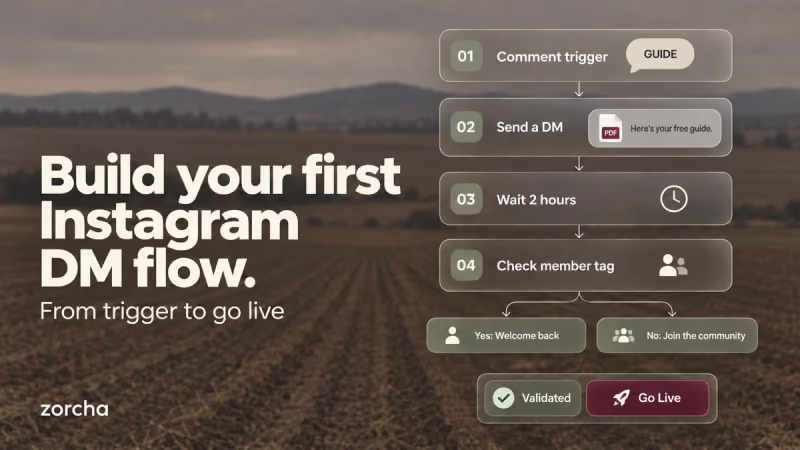
The other guides in this series explain what each part of the Flow Builder does, including triggers, message formats, Conditions, and Smart Delay. This one skips the explanations and gets straight to building.
By the end, you'll have a complete flow live on your account: someone comments a keyword on your reel, gets an instant DM with a PDF guide and a button, waits two hours for a follow-up, and lands on one of two messages depending on whether they're already part of your community.
Open the Flow Builder inside Zorcha and follow along; every step below maps to something you'll click on the canvas.
TL;DR
- This flow runs on a single trigger, Comments on Post or Reel, set to fire only on the keyword GUIDE.
- The first DM stacks a text message, a PDF guide, a follow-up line, and a button inside one Send a DM step using Add Message.
- Smart Delay holds the flow for two hours, measured individually for each person, before the next step runs.
- A Condition checks for the joined_community tag and splits everyone into a Yes path or a No path with different follow-up messages.
- Validate checks the whole structure for anything incomplete before Go Live, making the flow active.
The Flow at a Glance
Before opening anything, here's the shape of what gets built, stage by stage:
- Trigger - someone comments GUIDE on a chosen reel
- DM - they receive the guide, a follow-up line, and a button, all in one message
- Smart Delay - the flow pauses for two hours
- Condition - checks whether they're tagged joined_community
- Yes/No DM - one of two follow-up messages goes out depending on the tag
Here's how each stage takes shape on the canvas.
Also read: The complete link in bio guide: how to grow your Instagram audience with one link
Building the Flow
.png)
Given below is the step-by-step guide to building a flow with Zorcha’s Custom Flow Builder:
Step 1 - Choose the Trigger
Open Flow Builder and click Start with a trigger. This opens a blank canvas with a panel on the right listing every trigger, grouped under Instagram, Forms, and Audience. Select Comments on Post or Reel from the Instagram group, and a trigger node appears on the canvas with a dashed border, waiting to be configured.
Step 2 - Configure the Trigger
The same panel now shows a grid of your recent posts and reels, scroll through and select the one this campaign is built around. Below that, under Setup Keywords, switch off Any keyword and type GUIDE, so this becomes the only word that starts the flow. Turn on Publicly reply to comments as well, so every GUIDE comment gets a visible reply under the post, which can prompt more people to do the same.
Step 3 - Add the First Step
With the trigger set, click Add Step, and it appears connected to the trigger node. The panel that opens groups everything under Instagram, Logic, and External. Select Send a DM from Instagram, and a new node connects directly to the trigger, ready for its message.
Step 4 - Write the Message
Selecting Send a DM opens the Setup DM panel. Start with a text block, something like “Hey! Here's your free guide 👇”, then switch to the File tab and upload the PDF, which appears as a file card with its name and a thumbnail. Click Add Message to stack a second block underneath: a short line asking “Interested in more?”, with Add Button attached to it labeled “I'm interested.”
The finished node on the canvas now shows all of it together: the intro line, the guide, the follow-up question, and the button as one message.
Step 5 - Add Smart Delay
Click Add Step again, this time connected to the DM node, and select Smart Delay from Logic. The panel asks for a number and a unit. Set it to after 2 hours. This node now sits between the DM and whatever comes next, holding the flow for two hours before continuing.
Step 6 - Add the Condition
Click Add Step after Smart Delay and select Condition from Logic. The panel opens on Matches all of the following conditions, leave it there, since there's only one rule. Set it to Tags contains joined_community. The node on the canvas now splits into two branches, Yes and No, each with its own Add Step button.
Step 7 - Build the Yes Path
The Yes branch is for anyone who already carries the joined_community tag. Click Add Step on this branch, select Send a DM, and write a short message that acknowledges they're already in, a welcome-back note rather than a repeat of the first DM's pitch.
Step 8 - Build the No Path
The No branch is for everyone else. Click Add Step here too, select Send a DM, and write a message that points them toward joining, a quick line about what the community offers, with the Add Button attached so they have somewhere to tap next.
Step 9 - Go Live
Once Validate comes back clean, click Go Live. The flow switches from draft to active, and from here on, every GUIDE comment on the selected reel runs through the whole sequence on its own.
Your first flow is live. Everything from the comment to the two-hour follow-up to the condition branch now happens without you touching it.
Also read: 7 best Instagram AI chatbot tools for DM automation in 2026
Naming the Flow
.png)
Before, or right after, going live, give the flow a name that describes what it does, rather than leaving it as a default label. This name shows up in the breadcrumb at the top of the canvas, next to Automations, and it's how you'll pick this exact flow out of a list once you have several running.
Editing After Go Live
Flows rarely stay exactly as built. Maybe two hours turns out to be too long for the Smart Delay, or the button on the No path needs a different label. Changes like these, wording, timing, and button labels, can be made directly on a live flow.
If a change is bigger, like adding a third branch to the Condition or removing the Smart Delay altogether, it's worth checking whether anyone is currently partway through that part of the sequence, since a structural change can shift where they land next.
Also read: 7 link in bio mistakes that are killing your conversions and how to fix them
Conclusion
That's a complete flow, one trigger, one DM carrying three stacked elements, a two-hour delay, and a condition that sends people down one of two paths, all without writing any code. The same pattern carries over to anything else worth building: choose a trigger, decide what the first message says, add a delay or a condition where the conversation needs to branch, validate, and go live.
Open the Custom Flow Builder inside Zorcha and build this exact flow in the next few minutes, or use it as the starting shape for whatever your audience needs to hear next.
Ready to build? Start for free on Zorcha today and turn your first comment into an automated conversation.
FAQs
1. How long does this flow take to build?
Most of the time goes into Step 4, writing the message and uploading the PDF. The trigger, delay, and condition are quick configuration steps once you know what you want them set to, so this entire flow can be built and live in well under fifteen minutes.
2. How do I check that this flow is correct before going live?
Validate reviews the structure, confirming the trigger, both DM steps, the Smart Delay, and both Condition branches are filled in and connected to the next step. It doesn't preview the message content itself, so it's worth opening each Send a DM node once more before Go Live to read through exactly what each branch will send.
3. What would Validate actually catch in a flow like this?
In this build, it would flag things like a DM step left without any message, a Smart Delay with no time set, or either the Yes or No branch ending without a next step. It's checking that every node is filled in and connected, not whether the wording or timing makes sense for your audience.
4. What does the “I'm interested” button actually do in this flow?
As built here, it's not wired into the Condition; the branch later in the flow checks the joined_community tag instead. If you wanted the button click itself to decide the next step, you'd add a Condition right after the DM that checks whether it was tapped, instead of or alongside the tag check used here.
5. Does the two-hour delay start at the same time for everyone?
No, it's measured per person, from the moment they receive the first DM. Someone who comments GUIDE in the morning gets their follow-up around two hours later, and someone who comments in the evening gets theirs two hours after that, each on their own timeline.
6. Can this flow run alongside other automations on the same account?
Yes. Each flow operates independently once live, so this guide-and-follow-up sequence can run at the same time as other flows triggered by different keywords, posts, or DMs.